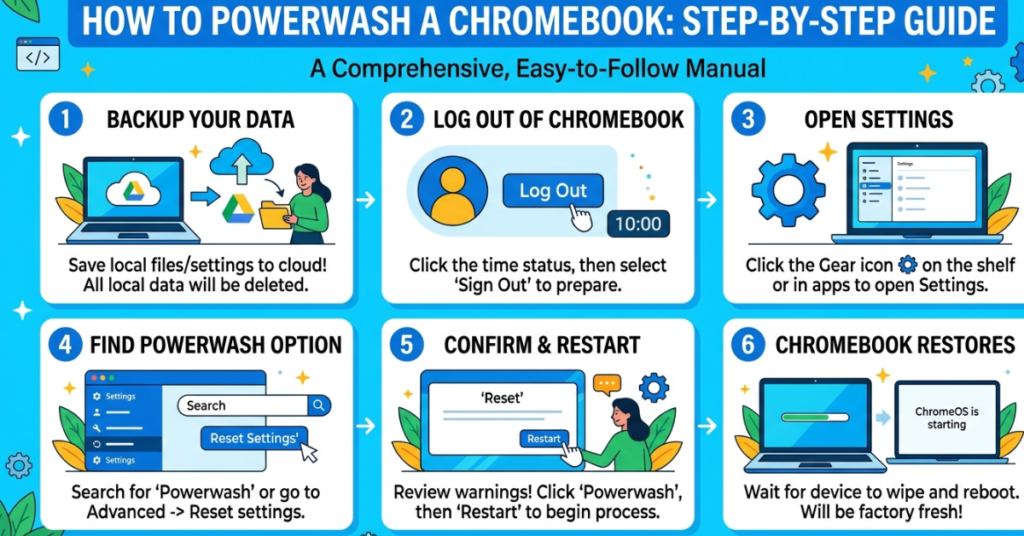

If your Chromebook is running slow, glitching, or you’re planning to sell it, learning how to powerwash a Chromebook can save you a lot of frustration. A powerwash resets your device to factory settings, wiping local data and giving you a clean start — like it just came out of the box.
In this guide, you’ll learn how to powerwash a Chromebook with keys, how to do it through settings, when you should reset, and what to do before you begin. Everything is explained in plain language so you can follow along easily.
What Does Powerwashing a Chromebook Do?
Before diving into how to powerwash a Chromebook, it helps to understand what happens during the process.
A powerwash will:
- Remove all local files and downloads
- Delete user accounts from the device
- Reset system settings to default
- Fix many performance or software issues
- Prepare your Chromebook for a new user
It does NOT delete:
- Files stored in Google Drive
- Data synced to your Google account
- Chrome browser bookmarks (if synced)
Tip: Most Chromebook data lives in the cloud, which makes resetting safe and simple.
When Should You Powerwash Your Chromebook?
You might want to powerwash your Chromebook if:
- It’s running slow
- Apps keep crashing
- You’re selling or giving it away
- You forgot your login password
- You’re experiencing unusual errors
- Malware or unwanted extensions appear
How to Powerwash a Chromebook Using Settings
This is the easiest method for most users.
Step-by-Step Instructions
- Click the time in the bottom-right corner
- Select Settings
- Scroll down and click Advanced
- Find Reset settings
- Click Powerwash
- Select Restart
- Click Powerwash → Continue
Your Chromebook will restart and begin resetting. The process usually takes 5–10 minutes.
How to Powerwash a Chromebook With Keys Keyboard Shortcut
If your Chromebook won’t boot properly, this method is very useful. This is the most searched method for how to powerwash a Chromebook with keys.
Keyboard Shortcut Method
- Sign out of your Chromebook
-
Press and hold:
Ctrl + Alt + Shift + R
- Click Restart
- Select Powerwash
- Click Continue
Your Chromebook will now reset automatically.
How to Powerwash a Chromebook From Login Screen
If you’re stuck at the login screen, try this:
-
On the login screen press:
Ctrl + Alt + Shift + R
- Click Restart
- Select Powerwash
- Click Continue
This works even if you cannot access settings.
What to Do Before You Powerwash Your Chromebook
Before performing a reset, take these quick precautions:
Backup Important Files
- Upload files to Google Drive
- Use a USB flash drive
- Sync Chrome bookmarks
Check Sync Settings
Make sure sync is ON:
- Settings → You and Google → Sync
Remove External Devices
Unplug:
- USB drives
- SD cards
- External mouse/keyboard
How Long Does a Chromebook Powerwash Take?
Typically:
- Reset time: 5–10 minutes
- Setup time: 2–5 minutes
Total time: Under 15 minutes
What Happens After the Powerwash?
After reset, your Chromebook will:
- Restart automatically
- Show the welcome screen
- Ask you to sign in again
- Restore synced data
Just log in with your Google account and you’re ready to go.
Troubleshooting: Powerwash Not Working?
If how to powerwash a Chromebook steps aren’t working, try:
Option 1: Hard Reset First
- Turn off Chromebook
- Hold Refresh + Power
- Release when it turns on
Then try powerwash again.
Option 2: Recovery Mode
You may need Chromebook recovery if system files are damaged.
External link suggestion:
- Chromebook Recovery Tool (Google support)
FAQs About Powerwashing a Chromebook
Does powerwashing remove Google account?
Yes, it removes accounts from the device but not from Google servers.
Is powerwash the same as factory reset?
Yes. Chromebook uses the term “Powerwash” for factory reset.
Will powerwash remove viruses?
Yes, most malware and unwanted extensions are removed.
Can I undo a powerwash?
No. Once done, local data cannot be recovered.
Do I need internet after powerwash?
Yes, you’ll need Wi-Fi to sign in and restore data.
How often should I powerwash my Chromebook?
Only when needed. It’s not required regularly.
Does powerwashing fix slow Chromebook issues?
Yes, it often improves performance significantly.
Conclusion
Knowing how to powerwash a Chromebook is one of the easiest ways to fix performance problems, remove bugs, and start fresh. Whether you use the settings menu or how to powerwash a Chromebook with keys, the process is quick and beginner-friendly.
Just remember to back up your data, follow the steps carefully, and your Chromebook will feel brand new in minutes. If your device is acting up or you’re passing it to someone else, a powerwash is the smartest move.
Ready to speed up your Chromebook? Give it a quick powerwash today and enjoy a clean slate.