
Ever opened an Instagram chat and noticed messages disappearing after you leave? That’s Vanish Mode in action. While it’s useful for temporary conversations, many users find it confusing or accidentally turn it on. If you’re wondering how to turn off vanish mode on Instagram, you’re in the right place.
This guide walks you through everything — whether you’re using Android, iPhone, or just want to turn off vanish mode on Instagram messages permanently. Let’s break it down in simple steps.
What Is Vanish Mode on Instagram?
Before learning how to turn off vanish mode on Instagram, it helps to understand what it does.
Vanish Mode is a feature in Instagram Direct Messages that:
- Makes messages disappear after they’re seen
- Automatically clears chat history when you exit
- Notifies users if someone takes a screenshot
- Works only in one-on-one chats (not group chats)
It’s designed for private, temporary conversations — but it can be turned on accidentally with a simple swipe.
How to Turn Off Vanish Mode on Instagram Messages
Turning off vanish mode is actually very easy. Just follow these steps:
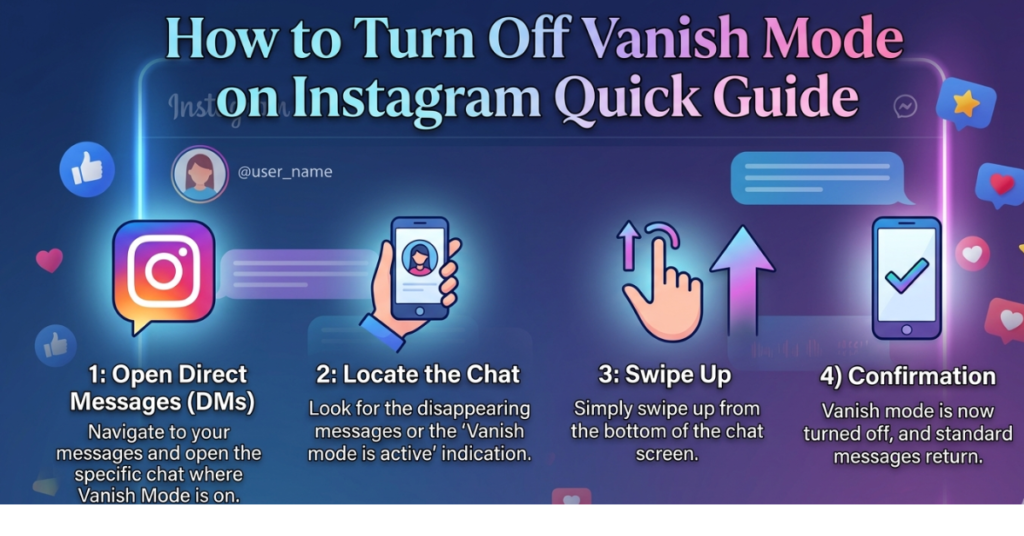
Method 1: Swipe Up to Disable Quickest Way
- Open the Instagram app
- Go to your Direct Messages
- Open the chat where vanish mode is enabled
- Swipe up from the bottom of the screen
- Release when you see “Release to turn off vanish mode”
That’s it! Vanish mode will be disabled, and your chat returns to normal.
How to Turn Off Vanish Mode on Instagram Android
If you’re using Android, the process is exactly the same:
- Launch Instagram
- Tap the Messenger icon (top right)
- Open the conversation
- Swipe up from the bottom
- Release to turn it off
Once done, you’ll see a message saying “Vanish mode turned off.”
Tip: If swipe doesn’t work, try closing and reopening the chat.
How to Turn Off Vanish Mode on Instagram Permanently
Instagram doesn’t have a “permanent disable” toggle, but you can prevent it from turning on accidentally:
Try These Tips:
- Avoid swiping up in chats
- Update your Instagram app (older versions glitch)
- Turn off message controls for unknown users
- Restart the app if vanish mode activates automatically
While you can’t globally disable vanish mode, once you turn it off in a chat, it stays off unless someone reactivates it.
Alternative Way: Use Chat Settings
Some users may see a toggle instead of swipe:
- Open chat
- Tap the username at the top
- Look for Privacy & Safety
- Tap Vanish Mode
- Toggle it off
This option appears depending on your app version.
Why Does Vanish Mode Turn On Automatically?
Users often report vanish mode activating without intention. Here are common reasons:
- Accidental swipe gesture
- App glitches or bugs
- Outdated Instagram version
- Someone else in chat enabled it
Updating your app usually fixes this issue.
How to Know If Vanish Mode Is On
You’ll notice:
- Dark screen background
- Messages disappear after viewing
- Notification saying “You’re in vanish mode”
Once you turn it off, the chat returns to normal.
Common Issues When Turning Off Vanish Mode
Swipe Not Working?
Try:
- Restarting Instagram
- Updating app
- Clearing cache (Android users)
- Logging out and back in
Messages Still Disappearing?
Make sure the other person didn’t turn vanish mode back on.
FAQs
How do I turn off vanish mode on Instagram messages?
Open the chat and swipe up from the bottom of the screen. Release to disable vanish mode.
Can I turn off vanish mode on Instagram permanently?
No global setting exists, but once you turn it off in a chat, it remains off unless reactivated.
How to turn off vanish mode on Instagram Android?
Open the chat → swipe up → release. The feature turns off instantly.
Why can’t I turn off vanish mode?
Your app may be outdated, or the swipe gesture didn’t register. Update Instagram and try again.
Does turning off vanish mode restore messages?
No. Messages sent in vanish mode are permanently deleted once you exit.
Can someone turn vanish mode back on?
Yes. Either participant in the chat can enable it again.
Conclusion
Knowing how to turn off vanish mode on Instagram helps you avoid disappearing messages and confusion in chats. Simply swipe up in the conversation, and you’re back to normal messaging. Whether you’re on Android or iPhone, the process is quick and straightforward.
If vanish mode keeps turning on, update your app and avoid accidental swipes. Once disabled, your conversations will stay visible and easier to manage.
Want more Instagram tips? Explore related guides to master privacy settings and messaging features.